Ai-ssistance

AI Image Studio

Turn one product photo into marketplace-ready visuals

Ai-ssistance · ECOMMERCE IQ
Three ways to create

One photo, three formats

Upload a product photo, describe it, and AI produces store-ready images in three modes.

Infographic Feature callouts & A+ style graphics. Up to 10 photos, tall ratios (9:16 default). Best for product detail pages.
Carousel Polished marketplace photos in 10 styles. Square 1:1, several shots per batch. Best for listing galleries.
Banner Wide hero banners for storefronts & ads. Landscape or portrait, ratios up to 3:1. Best for campaigns.
Ai-ssistance
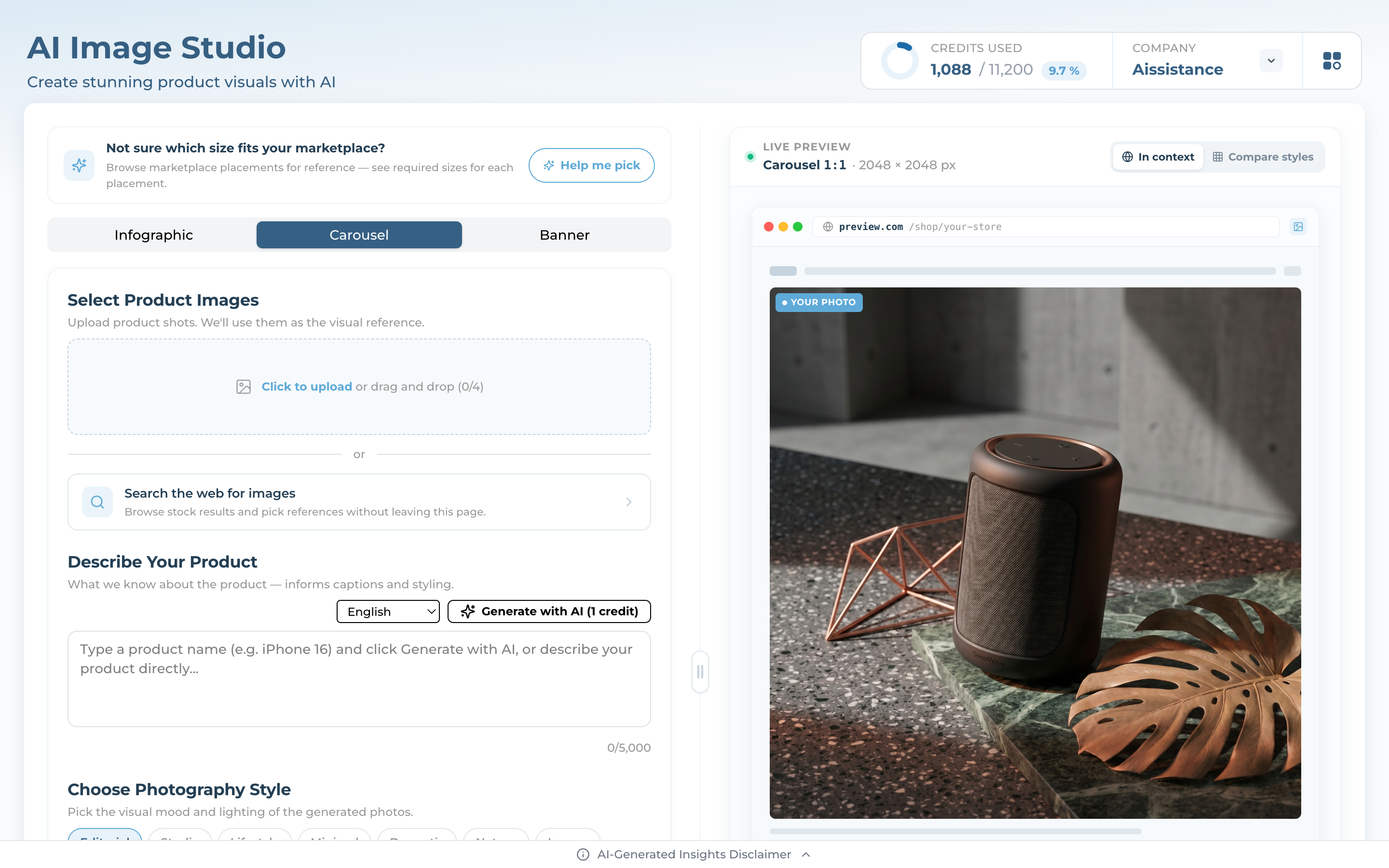
AI Image Studio home with Infographic, Carousel and Banner tabs and the credit balance
Step 1

Open AI Image Studio

  • In the Portal, open AI Image Studio (the Product Studio page).
  • Choose a tab at the top: Infographic, Carousel, or Banner.
  • Check your credit balance — each generated image costs 1 credit.
Tabs run in parallel — start one mode and switch to another while it generates.
Ai-ssistance
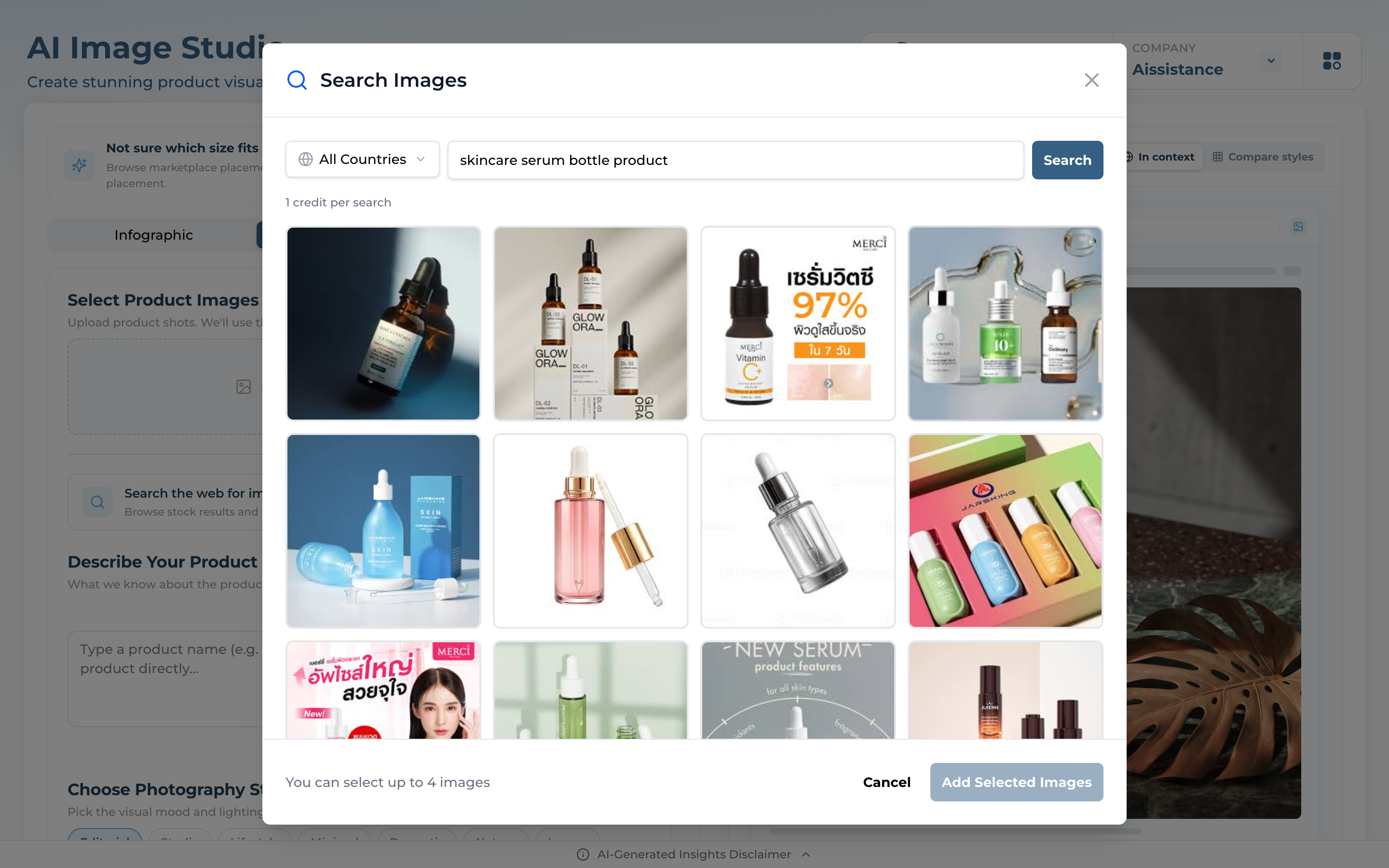
Image search results showing product photos with up to four selectable thumbnails
Step 2

Add your product image

  • Upload your own photo (JPG/PNG/WebP, drag-and-drop), or
  • Use Search the web for images — type a product and pick up to 4 results (1 credit per search).
  • Clean, single-product shots on a plain background give the best results.
Limits: up to 10 images (Infographic) or 4 (Carousel/Banner); 20 MB total.
Ai-ssistance
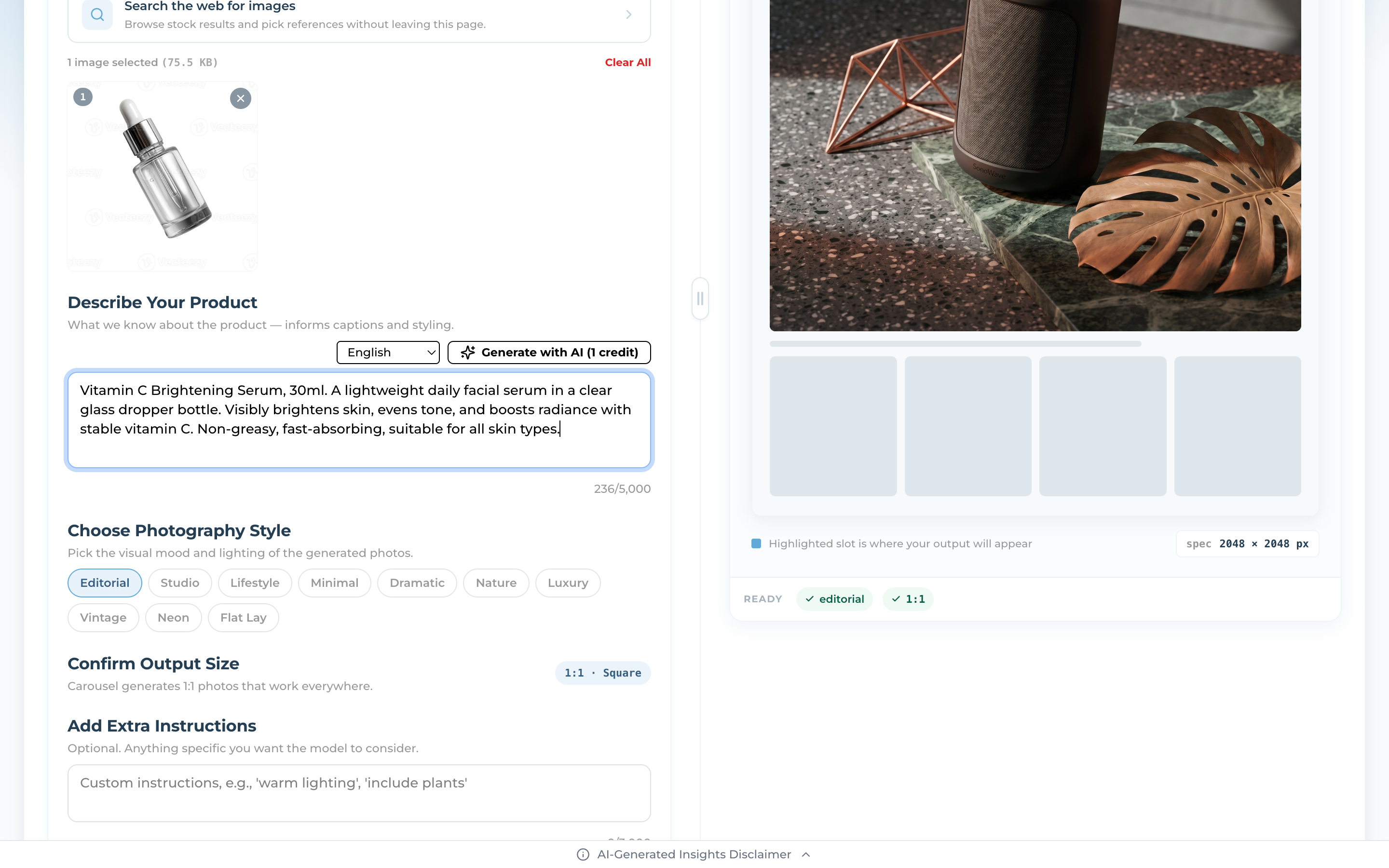
Describe Your Product field with Generate with AI button and an output language selector
Step 3

Describe your product

  • Write what the product is — this guides the captions and styling.
  • Short on time? Click Generate with AI to draft it from a product name (1 credit).
  • Pick the output language and add optional Extra Instructions (e.g. “warm lighting”).
Ai-ssistance
01

Carousel

Polished marketplace photos in 10 styles

Ai-ssistance
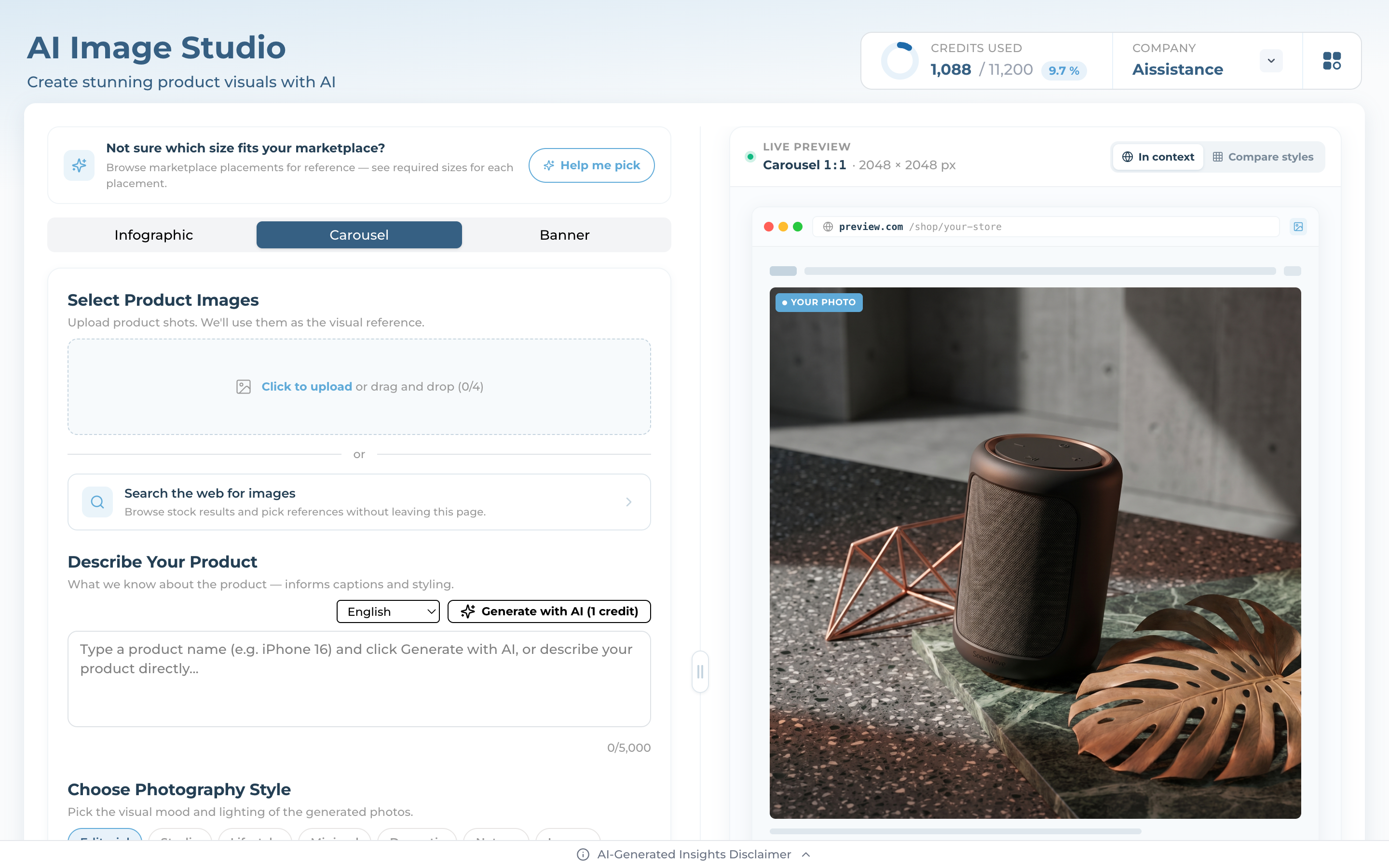
Carousel tab showing the 10 photography style options and a 1:1 square output setting
Step 4

Pick a photography style

  • Carousel reimagines your photo as a clean marketplace shot. Output is always 1:1 square.
  • Choose one of 10 styles — Editorial, Studio, Lifestyle, Minimal, Dramatic, Nature, Luxury, Vintage, Neon, Flat Lay.
  • Editorial is the default and works for most products.
Ai-ssistance
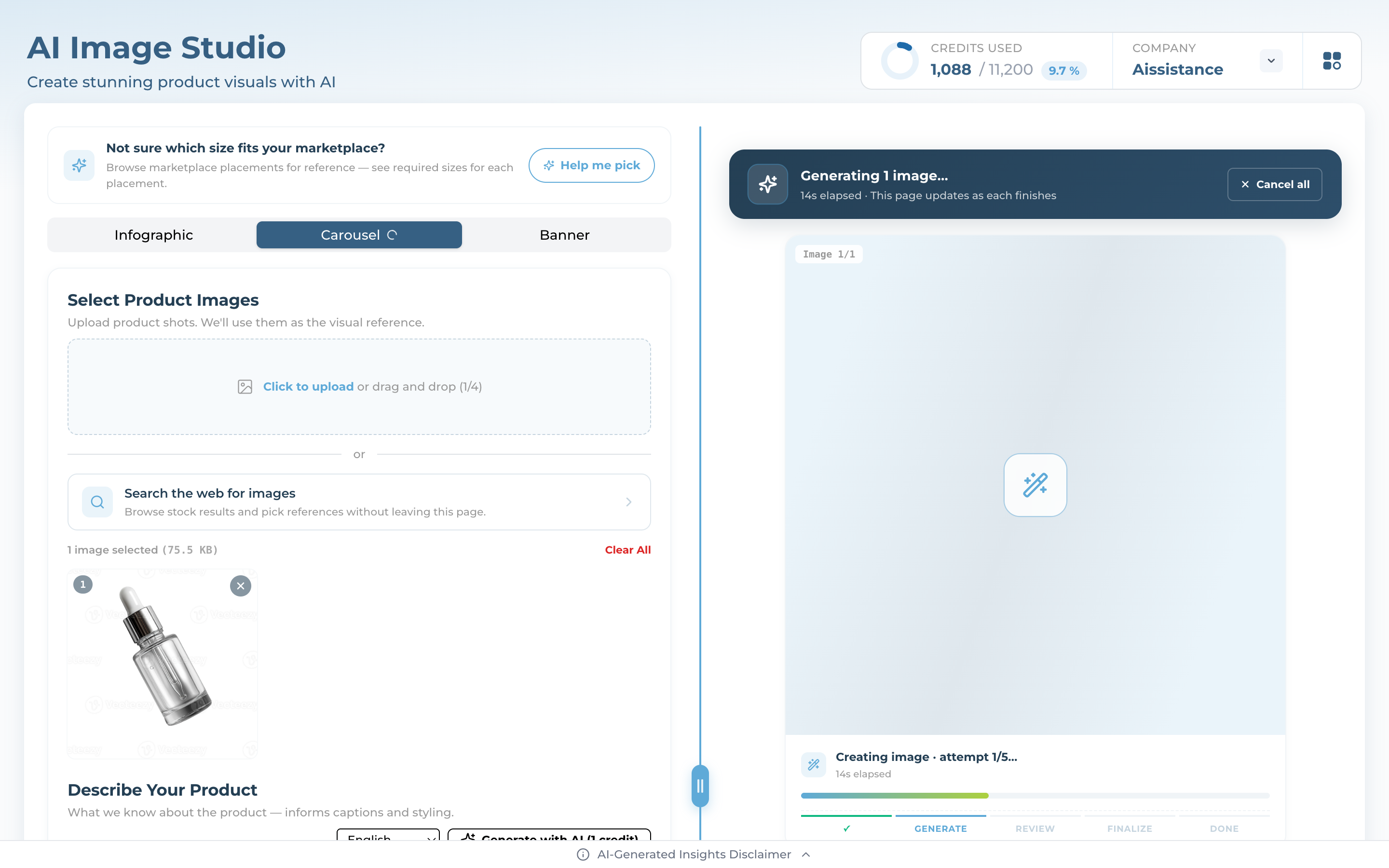
Generation progress with Analyze, Generate, Review, Finalize and Done stage chips
Step 5

Generate & watch progress

  • Click Generate. Each run streams its stages: Analyze → Generate → Review → Finalize → Done.
  • Generation usually takes 1–3 minutes per image.
  • You can keep working in other tabs while it runs, or Cancel all.
Every result is auto-checked for quality (QA) before it’s shown.
Ai-ssistance
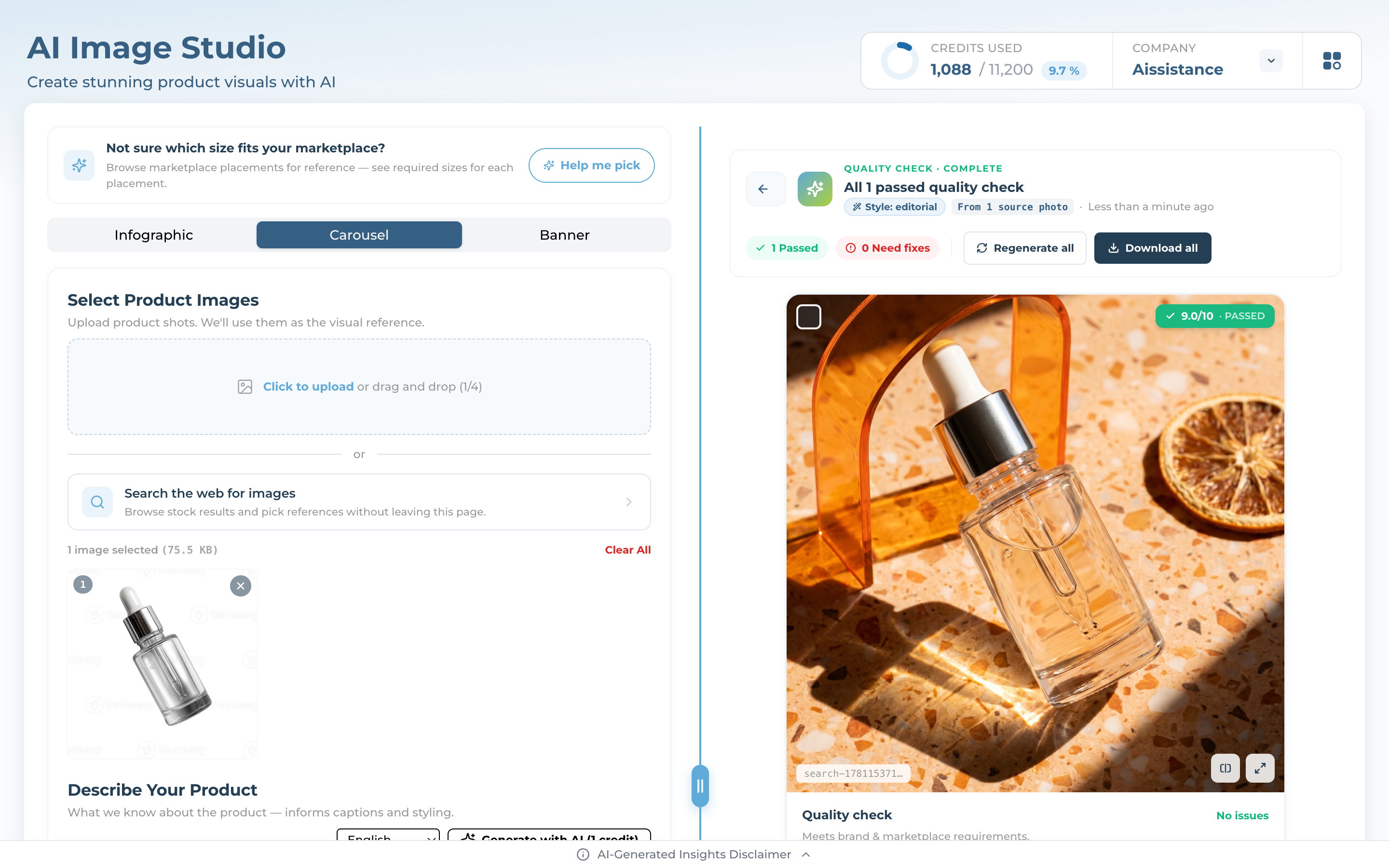
Generated images each showing a QA score out of 10 with Passed and Needs-fixes labels and a corrections list
Step 6

Review the quality score

  • Each image gets a QA score out of 10 and a Passed / Needs-fixes label.
  • Open the quality check to see issues flagged as minor, major, or critical.
  • Meets brand & marketplace requirements? Download it. Otherwise, refine it.
Ai-ssistance
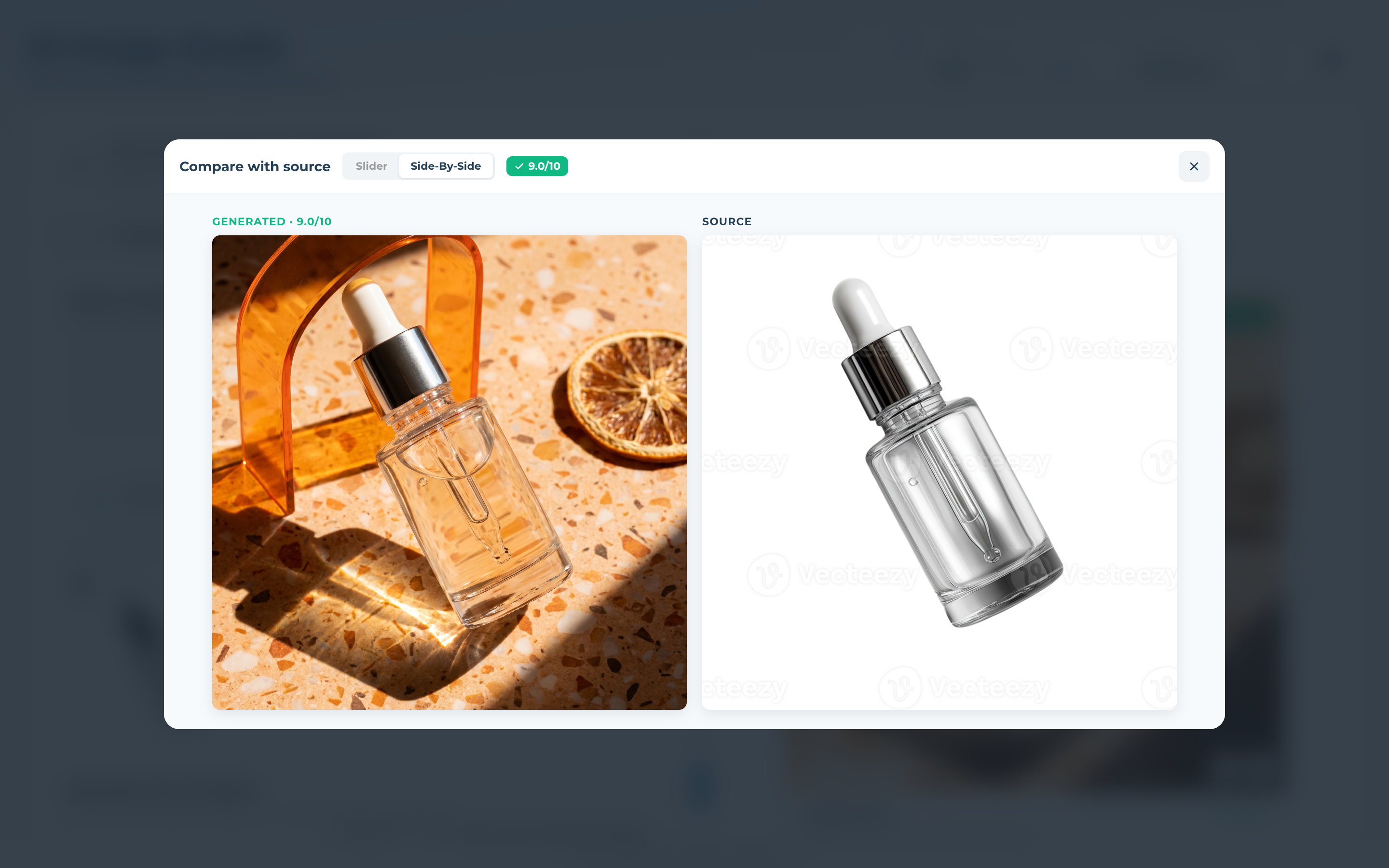
Compare with source view with a before-and-after slider and a list of suggested corrections to regenerate
Step 7

Compare & refine

  • Use Compare with source (slider or side-by-side) to check the result against your original.
  • Tap any suggested correction to include it, then Regenerate with fixes (1 credit).
  • Regeneration reuses your original photo — no need to re-upload.
A result stays editable for 1 hour; after that, use Generate fresh.
Ai-ssistance
02

Infographic

Feature callouts & A+ content

Ai-ssistance
Infographic tab with image uploads, a description and the aspect-ratio choices including 9:16 selected
Step 8

Set up an infographic

  • Add up to 10 product photos and a description, same as before.
  • Choose an aspect ratio — 1:1, 2:3, 4:3, 4:5, 9:16 (default), or 21:9.
  • 9:16 is ideal for marketplace product-detail pages.
Ai-ssistance
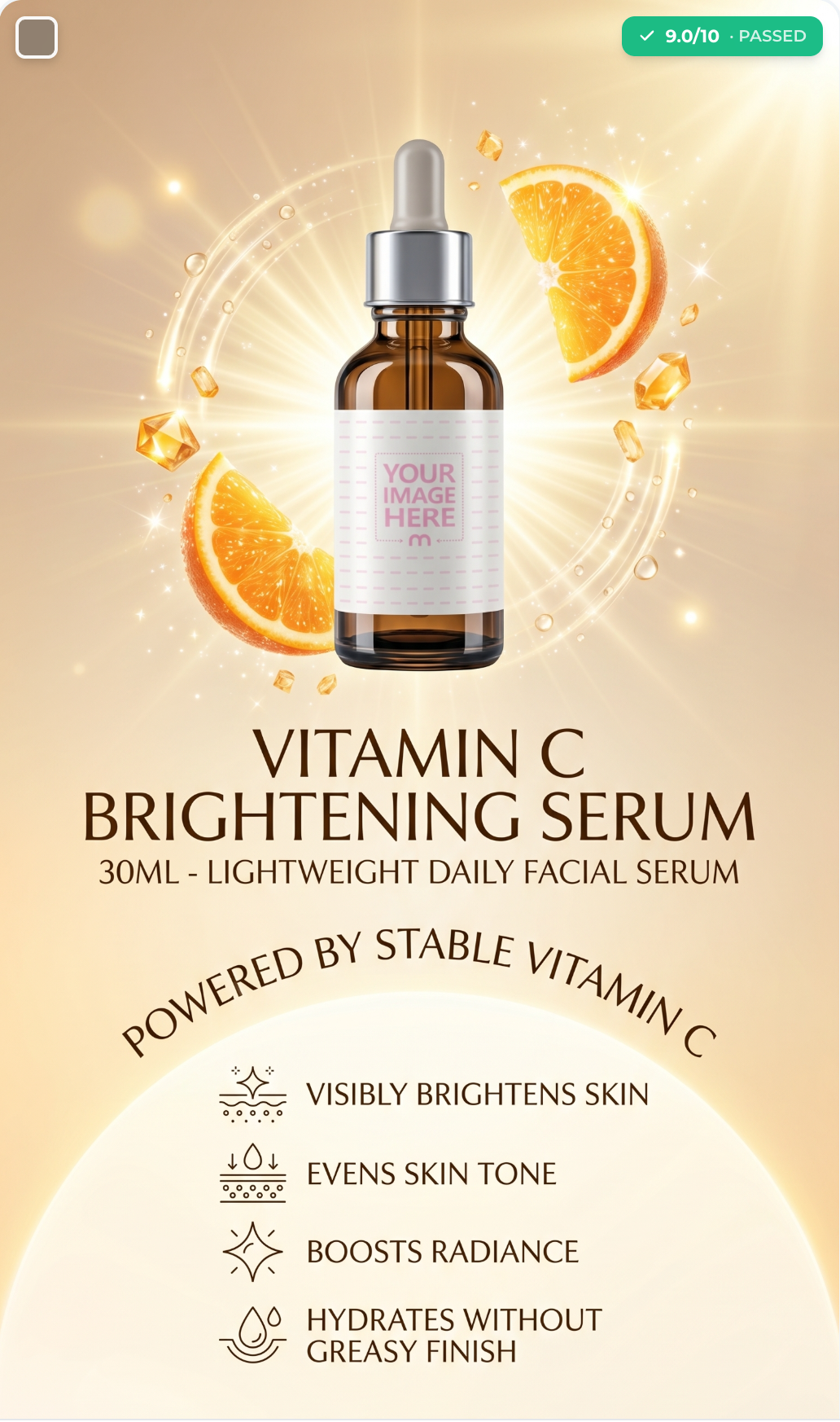
A finished 9:16 product infographic with on-image callouts and a QA score
Step 9

Your infographic

  • AI lays out your product with callouts and on-image text in the chosen language.
  • Infographics are quality-checked too — review the score and regenerate if needed.
  • Download as JPG when you’re happy.
Ai-ssistance
03

Banner

Wide hero banners for storefronts

Ai-ssistance
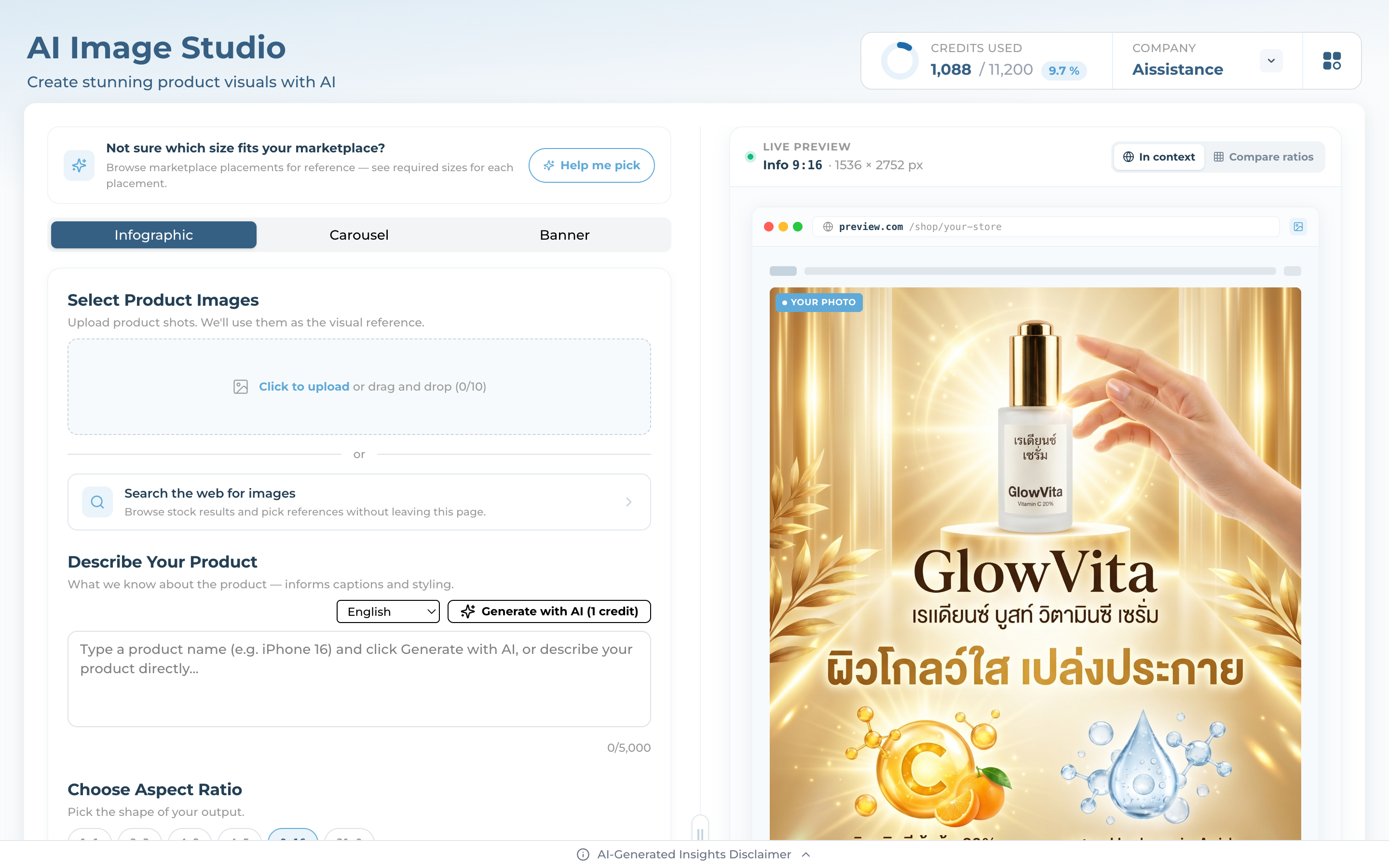
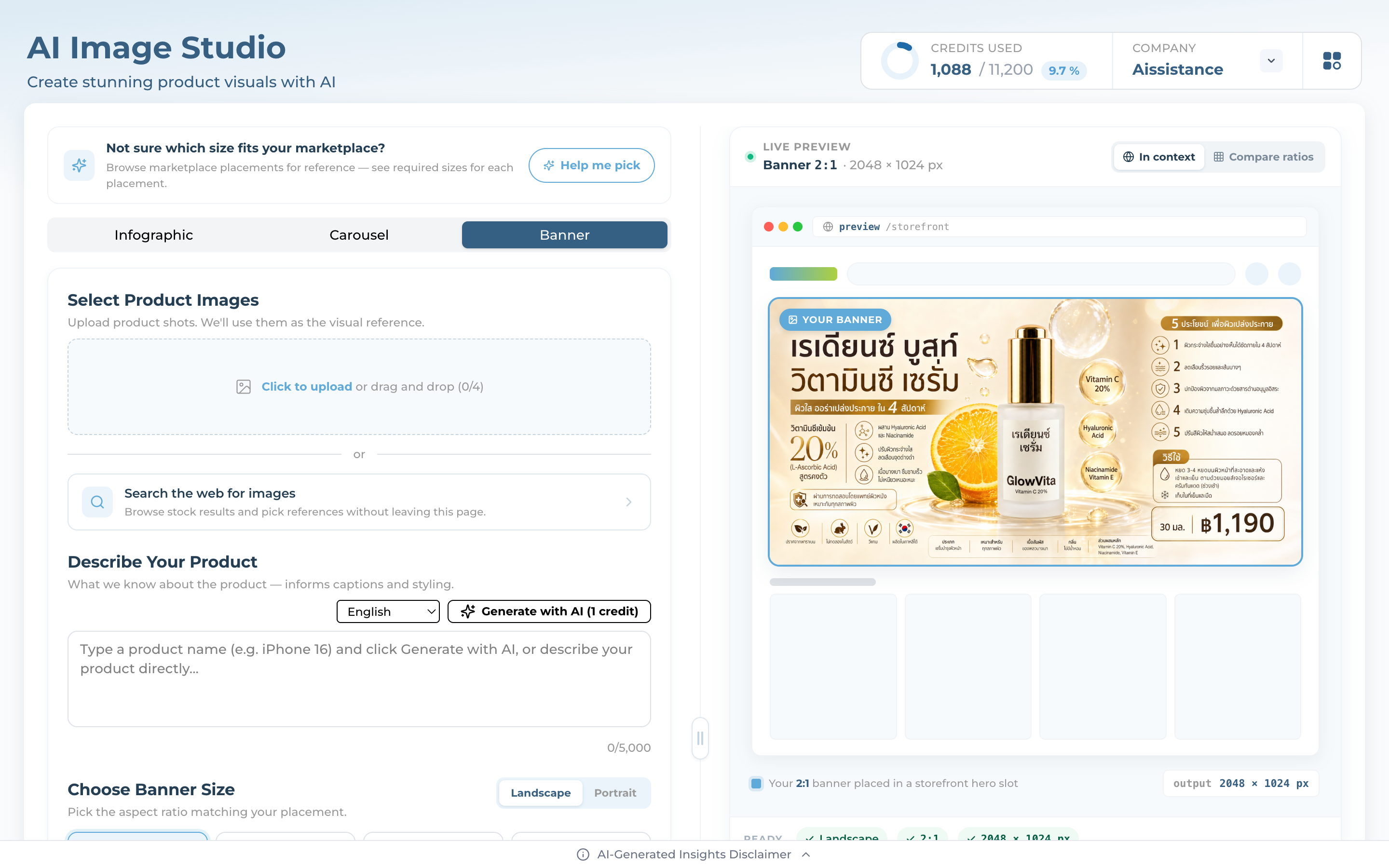
Banner tab with Landscape and Portrait options, wide ratio choices, and a live storefront hero preview of the banner in context
Step 10

Choose a banner size

  • Pick Landscape or Portrait, then a ratio (2:1, 7:3, 12:5, 3:1, and more).
  • Add your photo + description and click Generate — Banner is GPT-powered and made for storefront heroes and campaigns.
  • Preview your result in context in a storefront hero slot, then download as JPG.
Banner has no QA score or regenerate — generate again if you want a different take.
Ai-ssistance
Save your work

Download & credits

Every result is yours to keep.

Download anytime Download one image, or Download all as JPG.
1 credit each 1 credit per generated image, infographic, regenerate, or web search.
Yours to keep Downloaded images are permanent — even after the 1-hour edit window closes.
Ai-ssistance
Good to know

Limits & tips

A few things that make every batch go smoother.

Inputs JPG/PNG/WebP; up to 10 (Infographic) or 4 (Carousel/Banner); 20 MB total.
Not sure of the size? Use Help me pick for marketplace placement references.
Best results One clear product on a plain background; describe it well.
Credits Generation is blocked at 0; top up to continue.
Ai-ssistance
Ai-ssistance

Start creating

Open AI Image Studio and turn your product photos into sales.

Ai-ssistance · ECOMMERCE IQ